
Introduction
It’s a frustrating moment many business owners and bookkeepers know well. You run a report for a period you know was already finished, only to find the numbers have changed. Suddenly, your profit or GST, your tax figures no longer match what you lodged with the authorities.
When this happens, it’s usually not due to complex errors or technical issues. In most cases, this happens because a lock date in Xero was not set to protect the report, allowing you or any users to change the accounts without realizing it.

What are Lock Dates in Xero?
Think of a lock date as putting up a protective fence around your completed work. It tells Xero that everything up to a certain date is complete and shouldn’t be changed. Once it’s set, Xero won’t let anyone add, edit, or approve transactions dated on or before that day.
Its essential purpose is to protect your work. We’ve all made accidental typing mistakes. You’re entering a bill quickly and type “2023” instead of “2026.” Without a lock date, that bill would drop into a prior year’s accounts and change your profit and tax figures without any obvious warning.
A lock date makes sure that once you’ve finished a period, it stays finished. This is how a lock date in Xero protects your reports from changing after they’ve been reviewed, reported or lodged.
How to Set a Lock Date in Xero?
Before you start, it’s worth mentioning that only users with the Advisor role can change the Lock Dates. This helps make sure there’s some oversight before reopening a past period.
The process takes less than a minute (much less 😉):
- Go to Settings
- Select Financial Settings.
- Find the Lock Dates section on the screen
- Choose the date you want to lock up to (such as the end of the last month or quarter)
- Click Save.
Done. Lock dates are activated immediately. If someone tries to add or edit a transaction in a locked period, Xero will show an error message saying the accounts are locked.
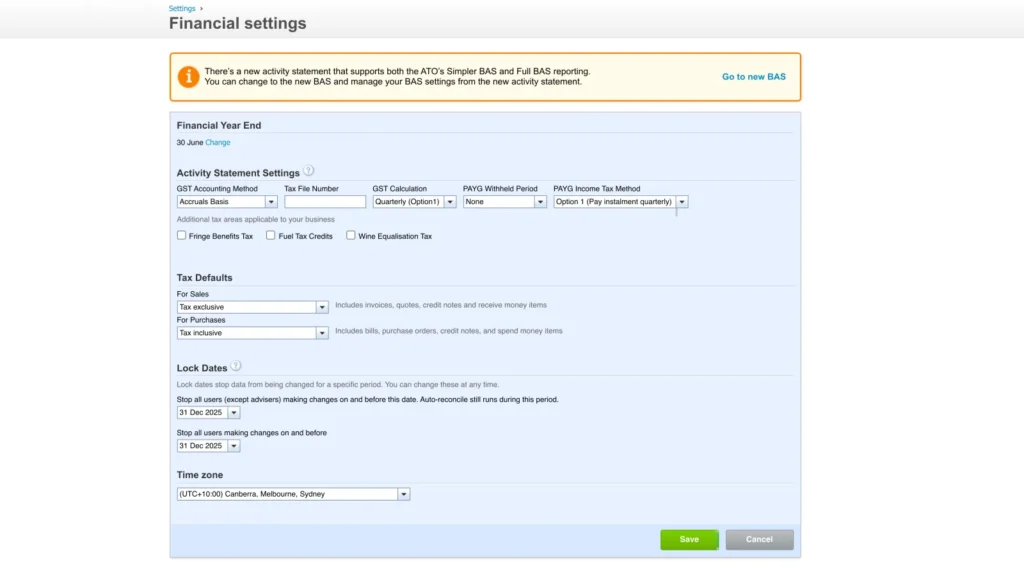
When selecting the lock date, you’ll see two options:
- lock the file for all users except Advisers, so this will lock your Xero file partially: standard users cannot change any transactions before that date, but advisors still can
- lock the file for all users, including Advisers
Pro tip: I usually recommend setting both dates to the same day. This gives your file the strongest protection.
Here’s something that often surprises people: Xero treats the connected apps like Hubdoc, Dext, ApprovalMax, Cin7, or Stripe, Paypal, and Square just like regular users. If you lock a period, those apps can’t push data into Xero for that period either. This is actually helpful, because you don’t want prior periods changing after you’ve already reported those numbers.
When to Lock Your Xero File?
Using lock dates regularly is a sign of well-managed Xero file.
Here’s a rule of thumb to follow:
- Each month: Once you’ve recorded and reconciled everything for the month, lock it. When you finish the next month, move the lock date forward.
- After submitting a BAS or any sales tax reports: Once you lodge a BAS or Sales Tax report, move the lock date to the end of that period tax return.
- Year-end: Once your annual tax return is filed, lock the file to your financial year-end (eg. 30 June) and keep it locked.
The golden rule
Never backdate a transaction to a period that’s been officially filed with the authorities. Ever.
If a tax return or financial statement has been officially filed with the authorities, that period should stay locked so your Xero reports remain protected. Full stop.
What if you need to unlock a period?
Sometimes changes are genuinely unavoidable for locked periods when no tax return has been filed yet.
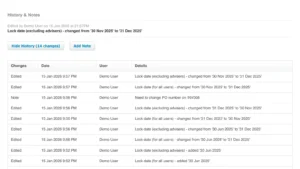
An Advisor can always adjust the lock date to reopen a period when necessary. If you do this, it’s good practice to add a note in the History and Notes section at the bottom of the Financial Settings page.
A short explanation of why you unlocked it and what you changed is enough. This creates a clear record, so no one is left guessing later what happened.
To check who changed a lock date and when, go back to Financial settings and review the History and notes section at the bottom. This gives you a full audit trail.
Final thoughts
Lock dates in Xero aren’t about restricting people or making things difficult.
They’re about building trust in your numbers and using a lock date in Xero to protect your reports. When your reports stay consistent, you can make decisions with confidence.
Take a moment to check: are your accounts locked up to your last finalized period? If not, it’s worth taking a few seconds today to jump into your settings and set it up.
I believe in You: you’re a champion 🏆

PS: If you’d like to learn more about Xero’s functions, please check out the other blog posts by 👉 CLICKING HERE.